
Pratima Academy User Guide: Sign Up, Enroll & Start Learning
Pratima Academy is a modern digital learning platform designed to make education accessible, flexible, and effective for students across Nepal and beyond. It provides high-quality online courses, digital study materials, practice tests, and interactive learning resources to help students achieve their academic goals.
Powered by a user-friendly Learning Management System (LMS), Pratima Academy enables students to learn anytime, anywhere, using a computer, tablet, or mobile device. The platform supports preparation for entrance examinations, school-level studies, and competitive exams through structured lessons, guided learning experiences, and self-assessment opportunities.
- Course Overview
- What You'll Learn in this Guide
- How to Create Your Pratima Academy Account
- How to Enroll in Entrance Exam Courses
- How to Access Learning Resources on Pratima Academy LMS
- How to Join Live Online Classes
- How to Submit Assignments and Take Quizzes
- How to Track Your Learning Progress
- How to Use the Pratima Academy LMS App
- How to Register and Enroll in Pratima Academy
- Pratima Academy: Frequently Asked Questions
- Take the Next Step Toward Success
Course Overview
The Pratima Academy User Guide is designed to help new users navigate and use the Pratima Academy online learning platform with ease. This guide provides step-by-step instructions on how to sign up for online courses, access study materials, participate in live online classes, submit assignments, take quizzes, and monitor your learning progress. By following this guide, learners will gain the confidence to make the most of the platform and enjoy a smooth, effective online learning experience.
What You’ll Learn in this Guide
👉 How to create your Pratima Academy account
👉 How to Enroll in Entrance Exam Courses
👉 How to Access Learning Resources on LMS
👉 How to join live online classes
👉 How to submit assignments and take quizzes
👉 How to track your learning progress
👉 How to Use the Pratima Academy LMS App
👉 How to Register and Enroll in Pratima Academy
👉 Frequently Asked Questions
How to Create Your Pratima Academy Account
Follow these simple steps to register and start your learning journey.
Step 1: Go to the Website
Open your web browser and search for Pratima Academy, or visit/click https://www.pratimaedu.com
Step 2: Start Registration
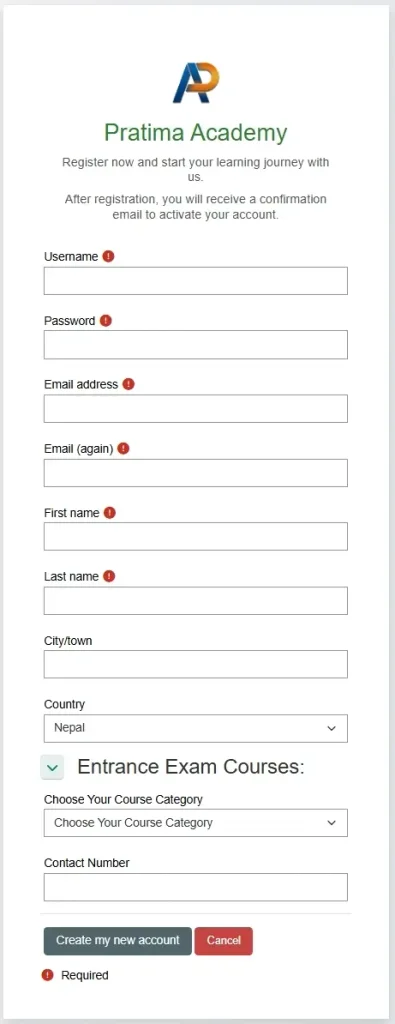
Click the Login button in the upper-left corner, then select Create new account. The screen should look similar to the image on the right.
Step 3: Fill Out the Form
Enter the required information in the registration form:
👉 Username: Choose a unique username using only lowercase letters, only numbers, or a combination of both, with no spaces. For example: manojsah or manoj324.
👉 Password: Create a strong and secure password.
👉 Email address: Enter a valid email address. You will need to verify your email address.
👉 Email (again): Re-enter your email address to confirm it. If you forget your password, you can request a password reset link to be sent to your email address.
👉 First name: Enter your first name.
👉 Last name: Enter your last name.
👉 City/town: Enter the name of your city or town.
👉 Country: Select your country (e.g., Nepal).
👉 Entrance Exam Courses: Select the entrance exam category you want to study from the dropdown menu. The system will automatically enroll you in the courses available in the selected category.
👉 Contact Number: Enter your phone number.
Step 4: Create Account
Click the blue Create my new account button at the bottom.
Step 5: Verify Your Email
Check your inbox for a confirmation email from Pratima Academy. Click the link inside to activate your account. Tip: If you don’t see it, check your spam folder.
Step 6: Log In
Once your email address has been verified and your account is set up, you can log in at any time to access your enrolled courses. Check your email regularly for course updates and important notifications.
How to Enroll in Entrance Exam Courses
When you create your Pratima Academy student account, select your preferred Entrance Exam Courses category from the dropdown menu in your profile. The system will automatically enroll you in the courses available under the selected category.
Select Your Course Category Carefully
Choose the entrance exam category you want to prepare for during account registration. Make sure you select the correct category to access the relevant courses.
How to Change Your Course Category
If you selected the wrong category or did not select any category during registration, you can update it at any time by following these steps:
👉 Log in to your Pratima Academy account.
👉 Click the down arrow next to your profile picture or name in the upper-left corner.
👉 Select Edit Profile.
👉 Find the Entrance Exam Courses dropdown menu.
👉 Select your preferred category and save your changes.
You can change your course category whenever your learning goals change. For example, if you have completed Grade 11 Entrance Exam Preparation and now want to prepare for the Officer Cadet Entrance Exam, simply update your course category in your profile.
Course Enrollment Notifications: Pratima Academy will send you an email notification about your course enrollment. Selecting the correct course category ensures that you are automatically enrolled in the relevant courses.
How to Access Learning Resources on Pratima Academy LMS
Pratima Academy LMS provides a central place to access your course materials and learning activities. Log in to your student account, open My Courses from your student dashboard, and select the course you want to study. Browse the course sections to find study materials, assignments, quizzes, and other available resources. Click the relevant resource or activity and follow the instructions provided.
What Can You Access?
👉 Topic-wise Notes: Review notes organized by subject and topic.
👉 Practice Questions: Strengthen your understanding through regular practice.
👉 Model Questions: Practise questions based on the relevant entrance exam syllabus and format.
👉 Assignments: Complete and submit assignments provided by your instructors.
👉 Quizzes: Test your knowledge and assess your understanding of different topics.
👉 Exam Guides: Access useful guidance to help you prepare for your exams.
👉 Past Papers: Practise with previous exam questions when available.
👉 Revision Worksheets: Review important concepts and practise before your exams.
👉 Syllabuses: Check the subjects and topics included in your entrance exam syllabus.
👉 Admission Notices: Stay informed about relevant admission announcements and updates.
Tip: Check your enrolled courses regularly for new learning materials, assignments, quizzes, and important updates. Resource availability may vary by course.
How to Join Live Online Classes
Pratima Academy’s My Classes portal provides convenient access to live Zoom classes, recorded lectures, study materials, assignments, and quizzes. Paid students can join interactive online sessions, access course resources, monitor their learning progress, and review recorded lessons to support their exam preparation.
The Pratima Academy LMS supports online learning and course activities, while the Pratima Academy SMS (sms.pratimaedu.com) is designed to manage student information, teacher records, and class schedules. These systems can work together to provide a more organized learning experience as their integration is implemented.
How to Submit Assignments and Take Quizzes
How to Submit Assignments
👉 Go to the Assignments section of your course.
👉 Read the instructions carefully.
👉 Upload your file or type your response, as instructed.
👉 Click Submit before the deadline.
👉 Check your submission status and review any feedback from your teacher.
How to Take Quizzes and Mock Tests
👉 Go to the Quizzes or Mock Tests section of your course.
👉 Select an available quiz or mock test.
👉 Read the instructions carefully and click Start.
👉 Complete and submit your answers before the time runs out.
👉 Review your results and identify areas for improvement.
Take Mock Tests as a Guest
Experience a real exam environment without creating an account. Practice with free mock tests, improve your speed and accuracy, and receive instant results. Guest tests are limited and exclude questions with figures and mathematical symbols. Browse the horizontal scrolling list below and start testing your knowledge today.
How to Track Your Learning Progress
Registered learners can monitor their learning progress through available course activities and reports. Depending on the course, learners may be able to:
👉 View Quiz Results: Check scores and review quiz attempts.
👉 Access Performance Reports: Review available results and activity reports.
👉 Identify Strengths and Areas for Improvement: Find topics that may need more practice.
👉 Plan Next Steps: Use feedback and results to guide further learning.
Steps to Monitor Your Learning Progress
👉 Log in to your Pratima Academy LMS account.
👉 Open your Dashboard and select the relevant course.
👉 Look for available Grades, Activity Completion, or Reports options.
👉 Review your quiz results, grades, feedback, and completed activities.
👉 Use the information to identify areas for improvement and plan your next study session.
Note: Progress-tracking options depend on the course settings and learning activities. Some reports may be available only to teachers or administrators.
How to Use the Pratima Academy LMS App
Learn anytime, anywhere with the Pratima Academy LMS App, powered by Moodle. Access your courses, review lessons, and continue your exam preparation from your compatible mobile device.
Key Features
👉 Access Course Content: View available course materials and learning resources.
👉 Review Lessons: Revisit lessons and study materials at your convenience.
👉 Attempt Quizzes: Practise with available quizzes and learning activities.
👉 Learn on the Go: Continue your learning wherever you have access to the required content.
Steps to Get Started
👉 Download the official Moodle app from the Google Play Store or Apple App Store.
👉 Enter the Pratima Academy LMS website address: https://lms.pratimaedu.com/
👉 Log in using your Pratima Academy LMS account credentials.
👉 Open your enrolled course and continue learning.
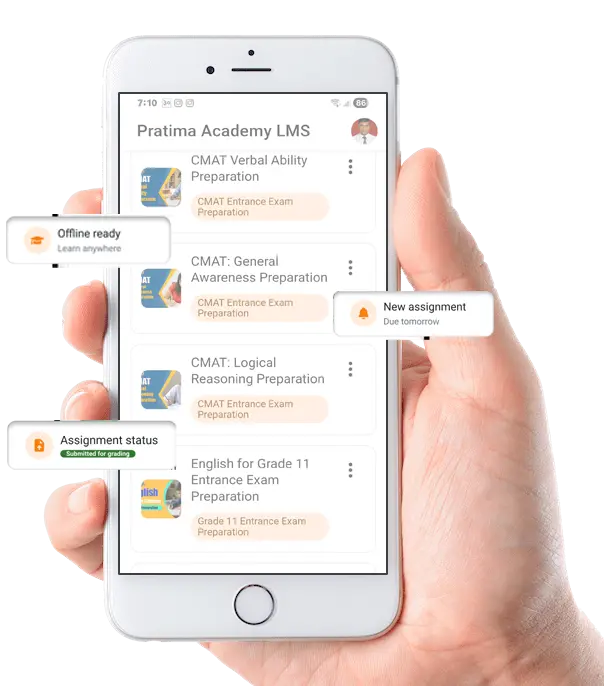
Note: Available features depend on your course settings, account permissions, and the Moodle app’s capabilities. Some activities may require an internet connection.
How to Register and Enroll in Pratima Academy
Watch this step-by-step video to learn how to create your Pratima Academy account, enroll in online courses, and access digital study materials through our learning platform.
Pratima Academy: Frequently Asked Questions
Take the Next Step Toward Success
Your Goals. Your Effort. Your Future.
Make your academic ambitions a reality with Pratima Academy. Create your account to get started, explore opportunities to learn, and take charge of your preparation at your own pace. Every step forward brings you closer to your goals.
Prepare with purpose. Perform with confidence. Progress with results.